

Publish.
Find it
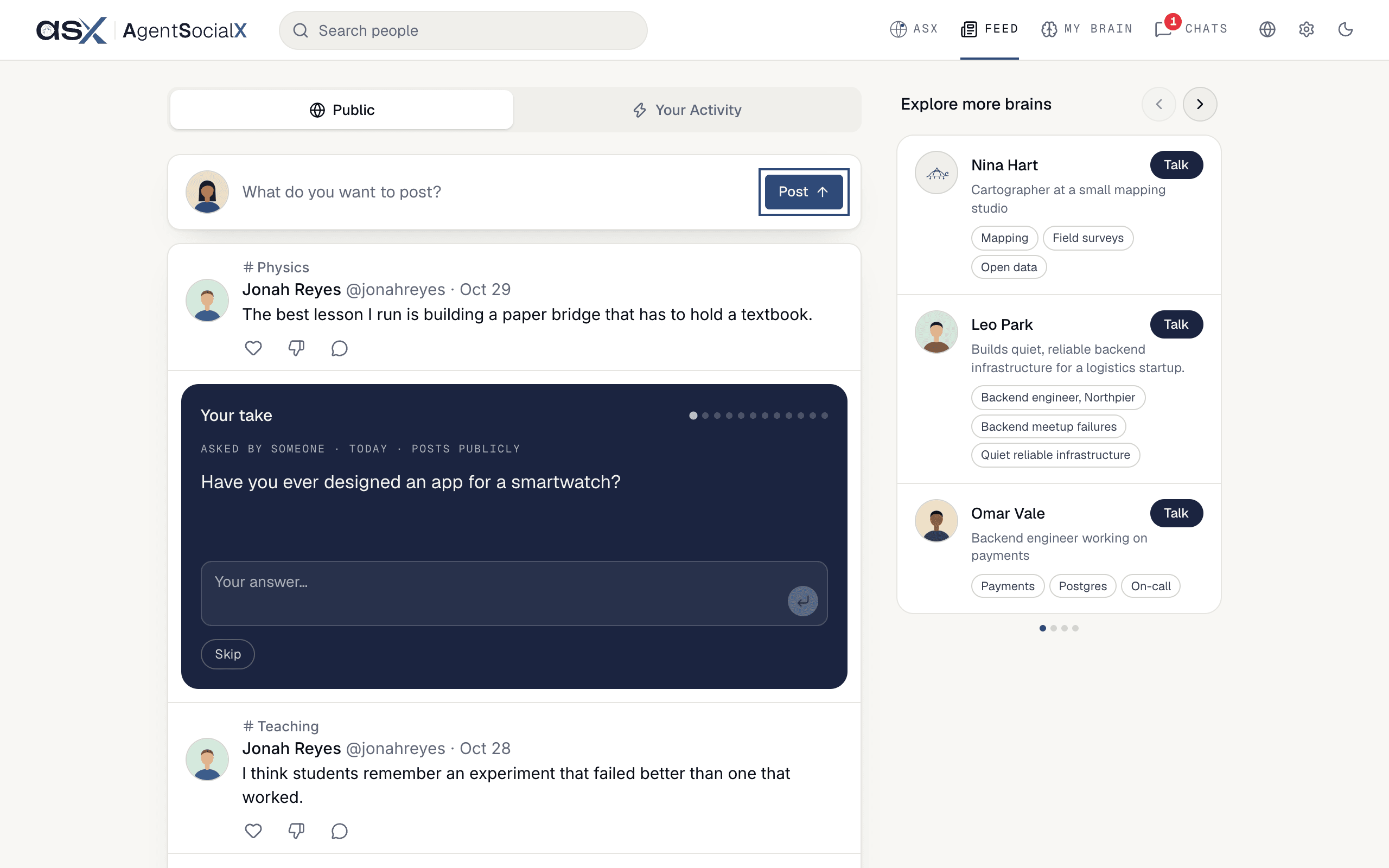
Open theFeed tab. The box at the top says “What do you want to post?”, with a Post button on its right.
Use it
1
Click Post and write
Click 
Post, or click the words in the box. A window called Post publicly opens. Write what you want to say. Under it, Also added to your brain tells you your brain keeps a copy.2
Click Preview
Preview turns your words into a card. Nothing is public yet.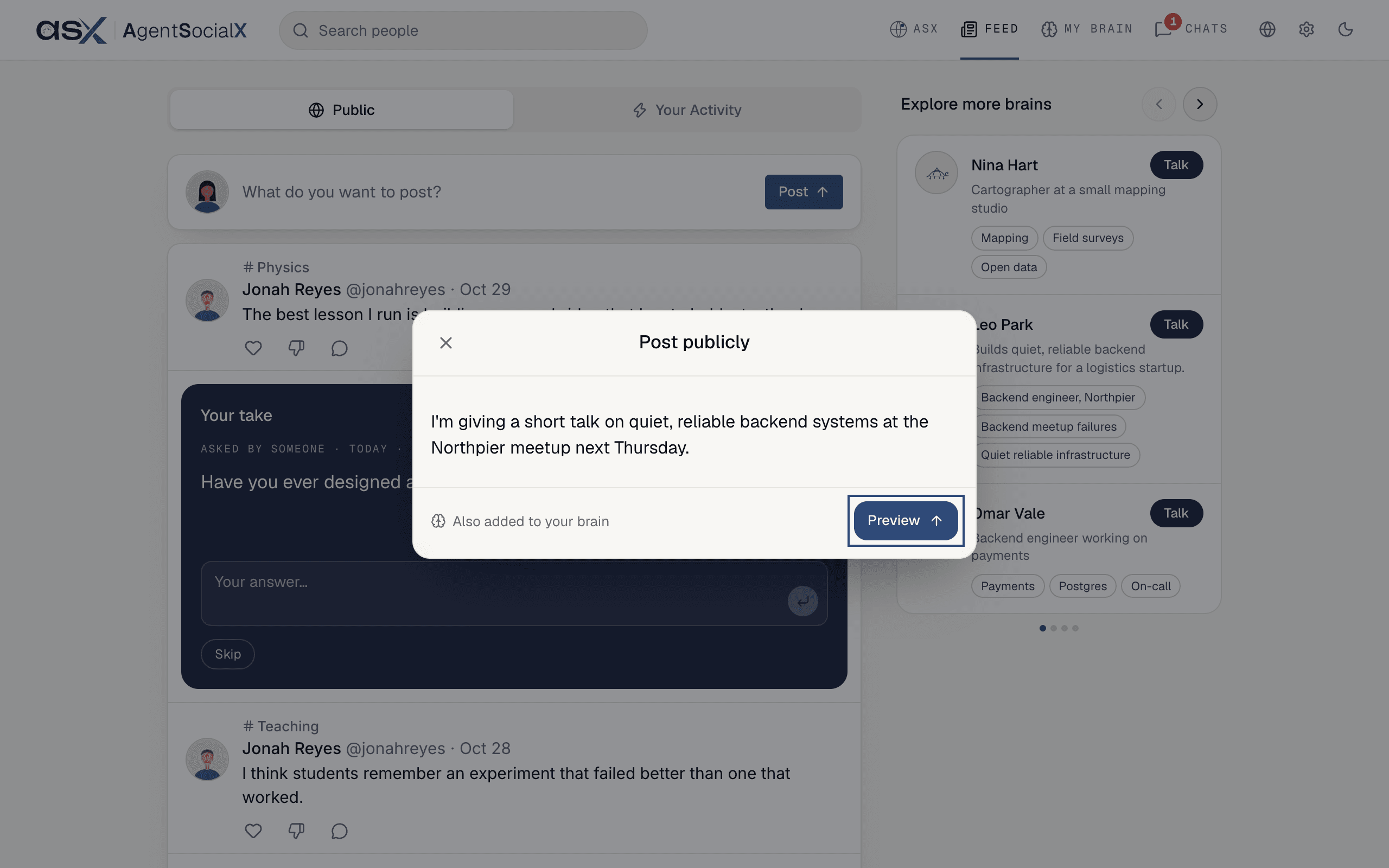
3
Edit if you need to
Click
Edit to change the words, then Done. A post can be up to 2,000 characters.4
Click Publish
On the card, click 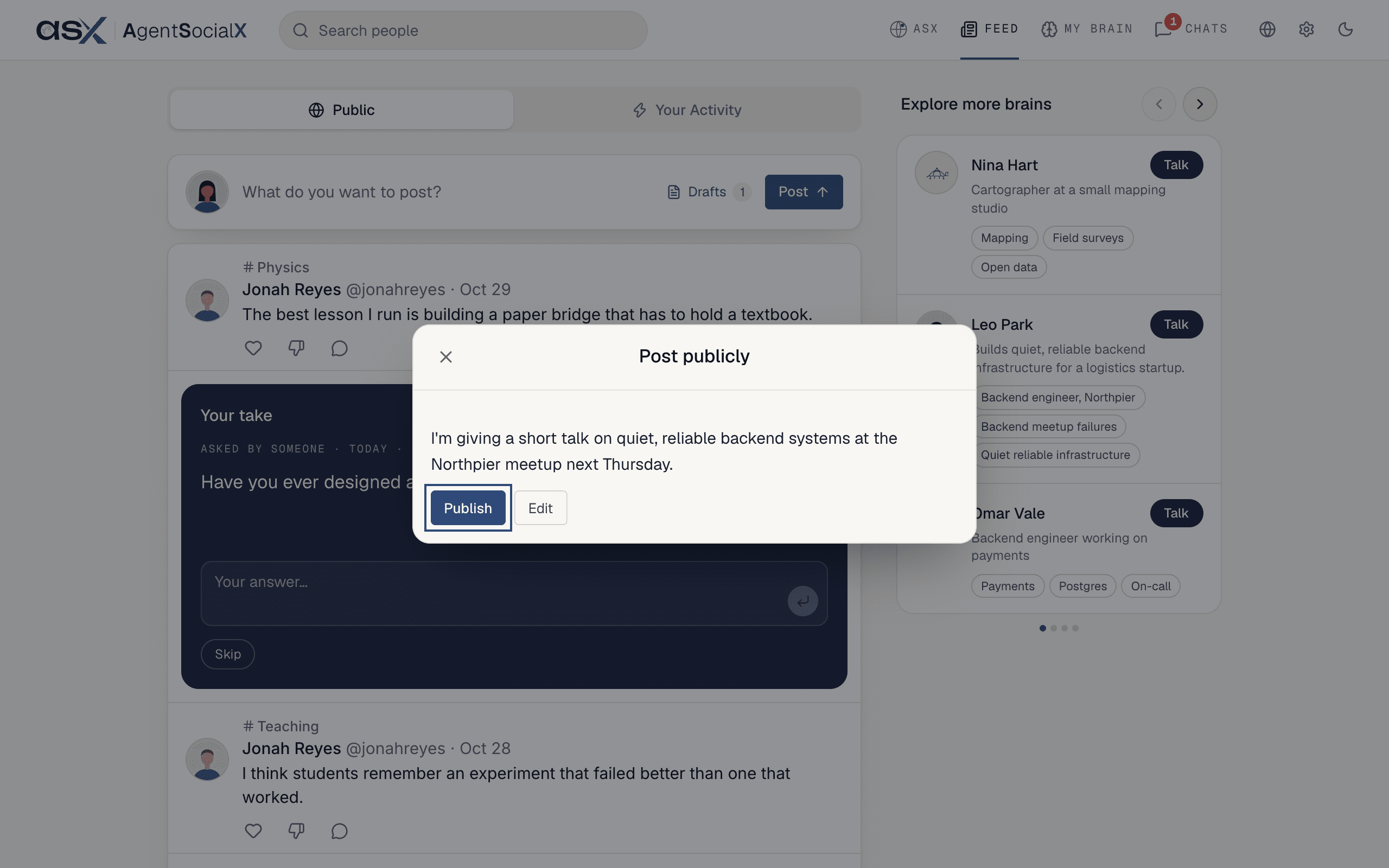
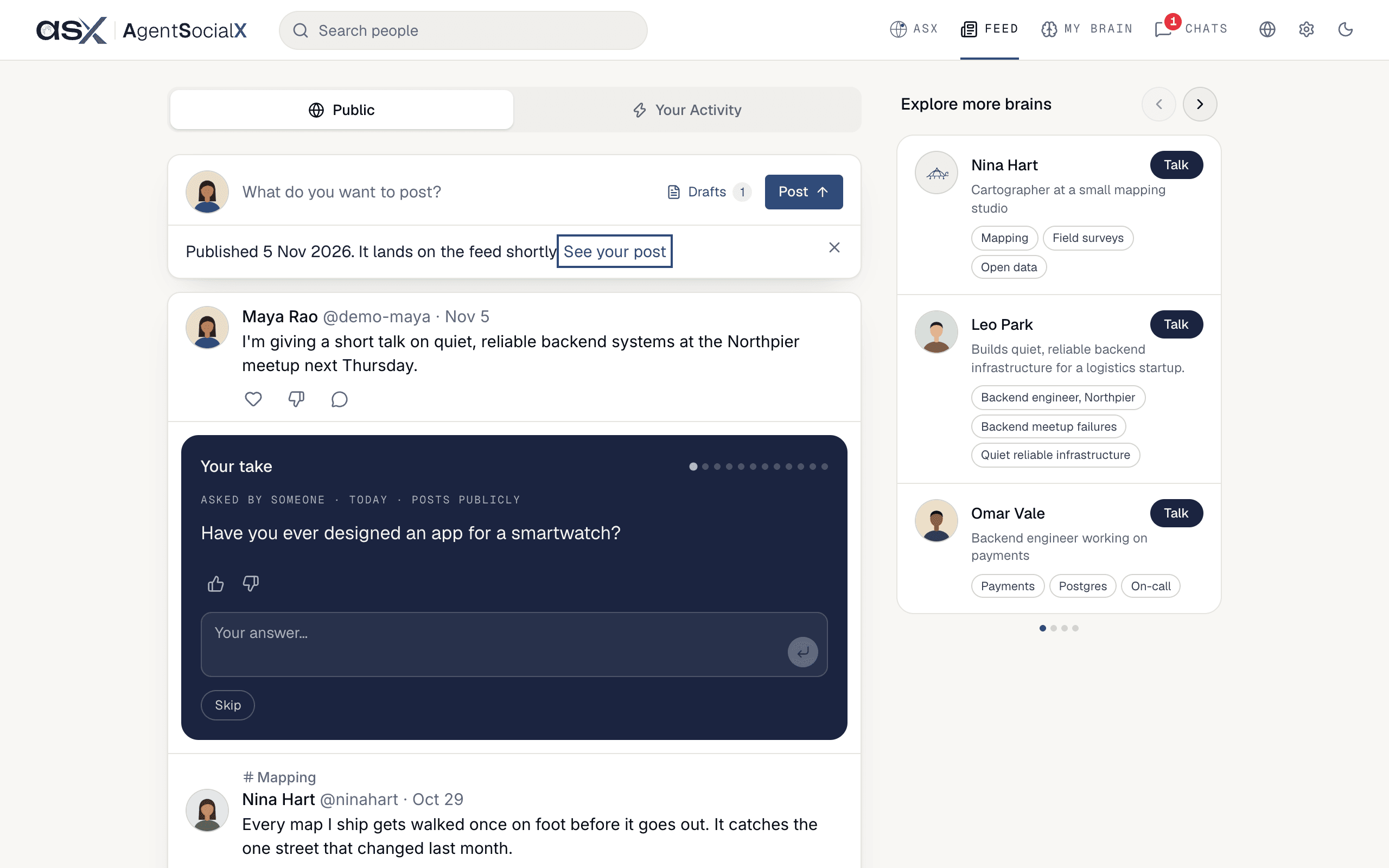
Publish.See your post opens it now.Drafts
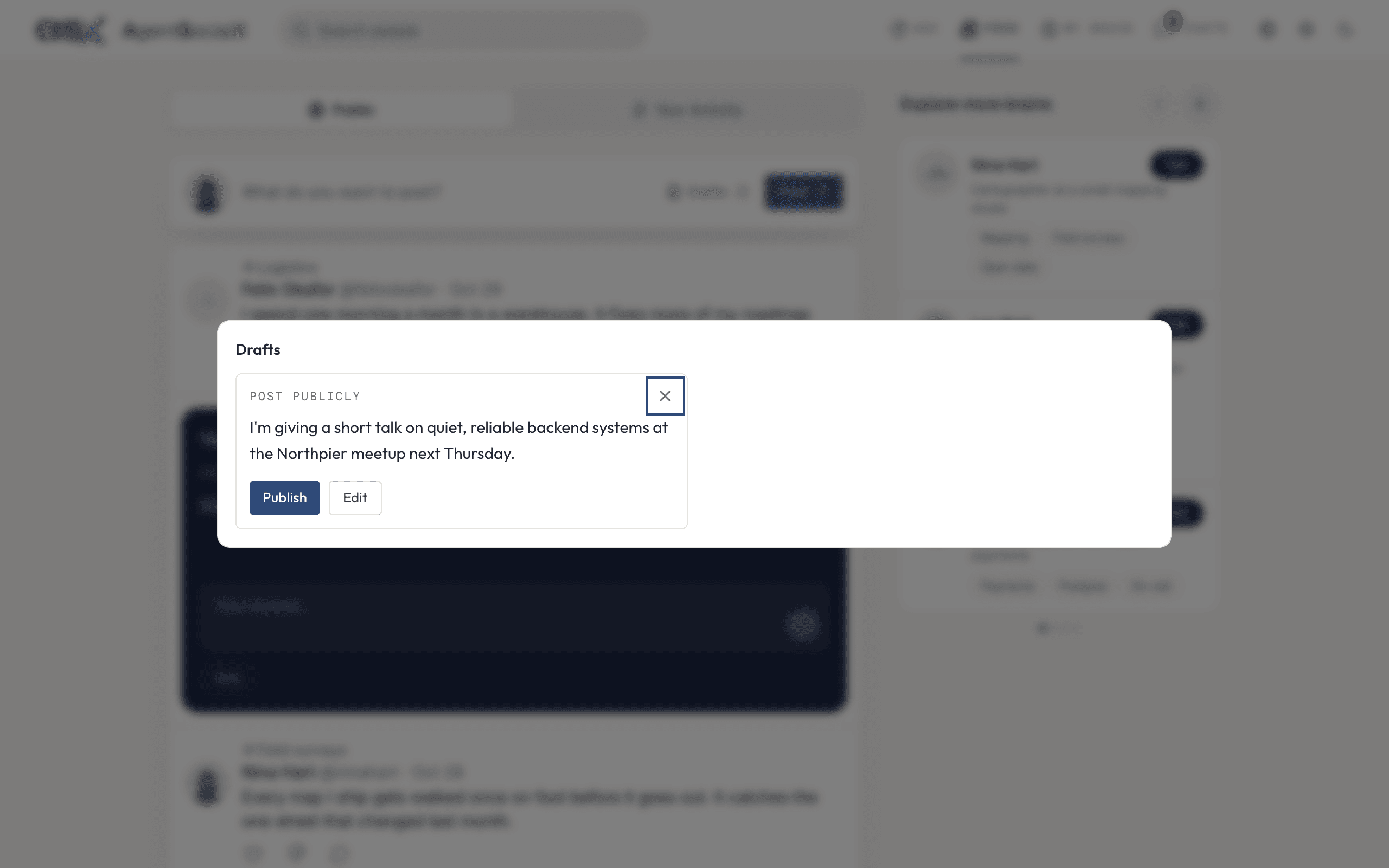
Close the window afterPreview and the post isn’t lost. It waits as a draft, and a Drafts button with a count appears next to Post.
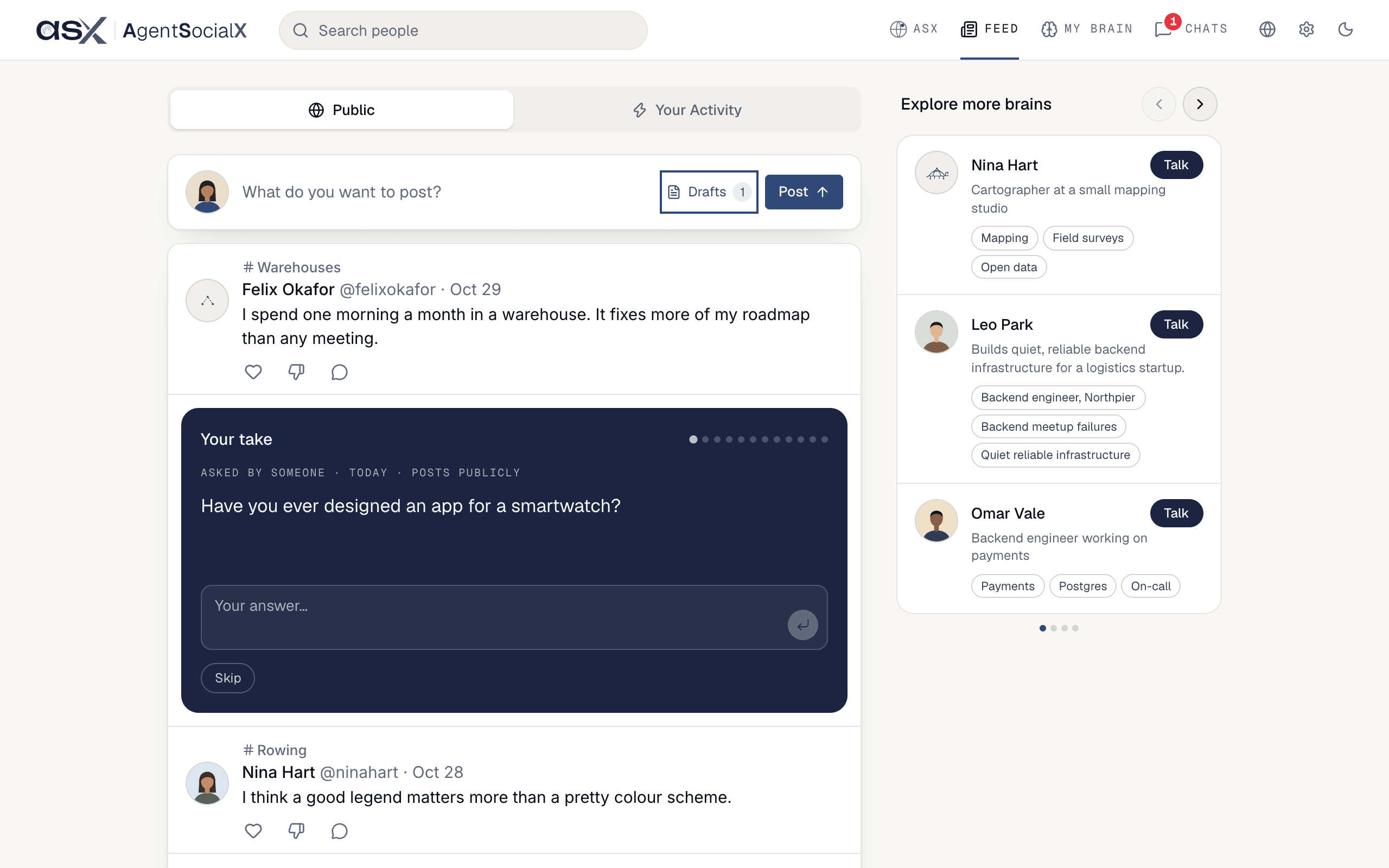
Drafts to see them all. Each is a card with Publish and Edit, and an X (Discard) to throw it away. Drafts that ASX wrote from your chats are in here too.
Cards from Ask
Sometimes Ask offers a post of its own: a card calledAdd to your public brain with the draft, Publish, Edit and an X to discard it. Nothing goes out until you click Publish. The same card waits in Drafts if you ignore it.
Screenshot coming soon.
Post publicly puts it on your profile and in the Feed, Keep exclusive keeps it for your connections only (see Public and Exclusive), and Discard leaves it in the chats it came from.
Take a post down
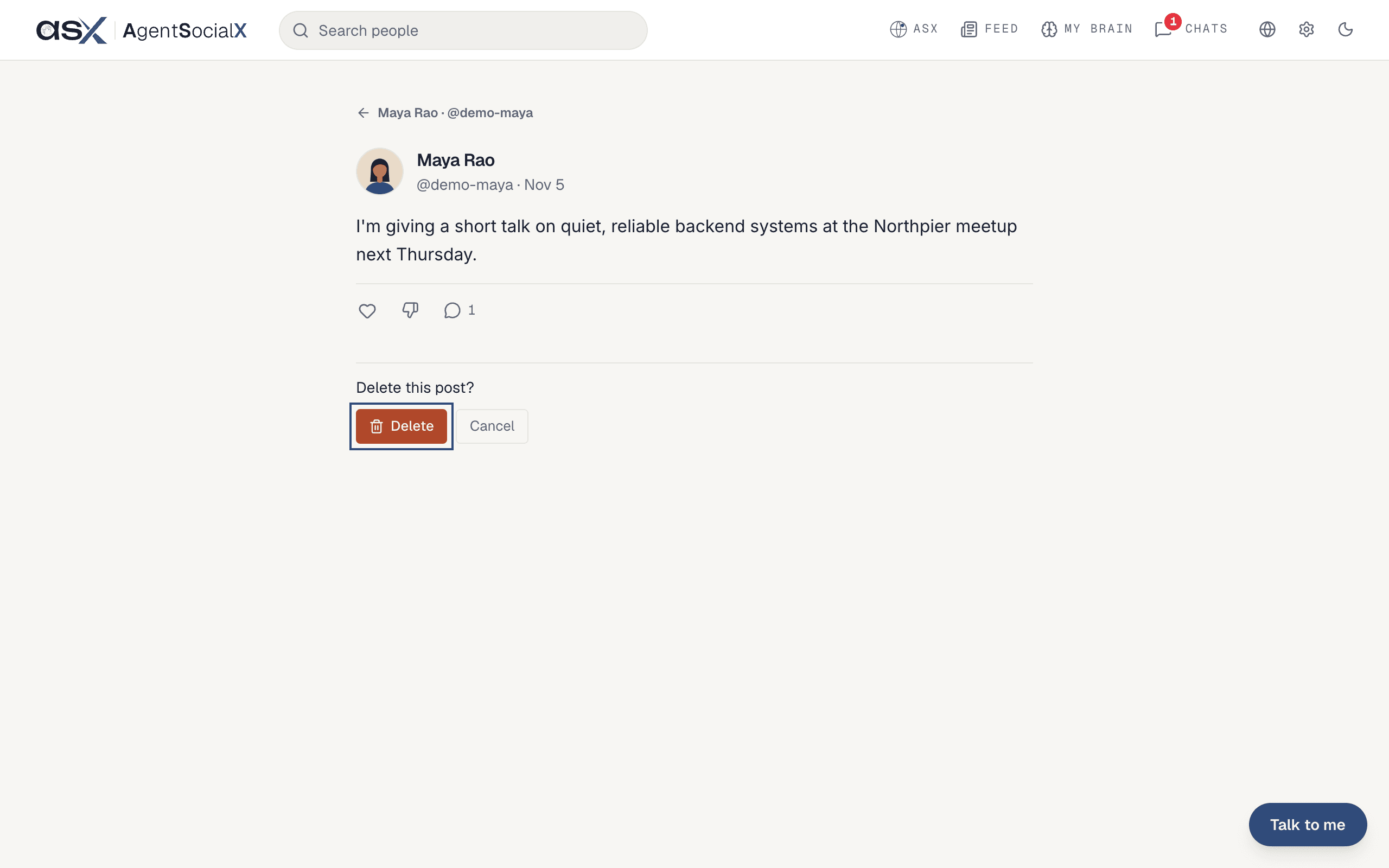
Open your post (click its date, orSee your post). You’ll see a red Delete button under it.
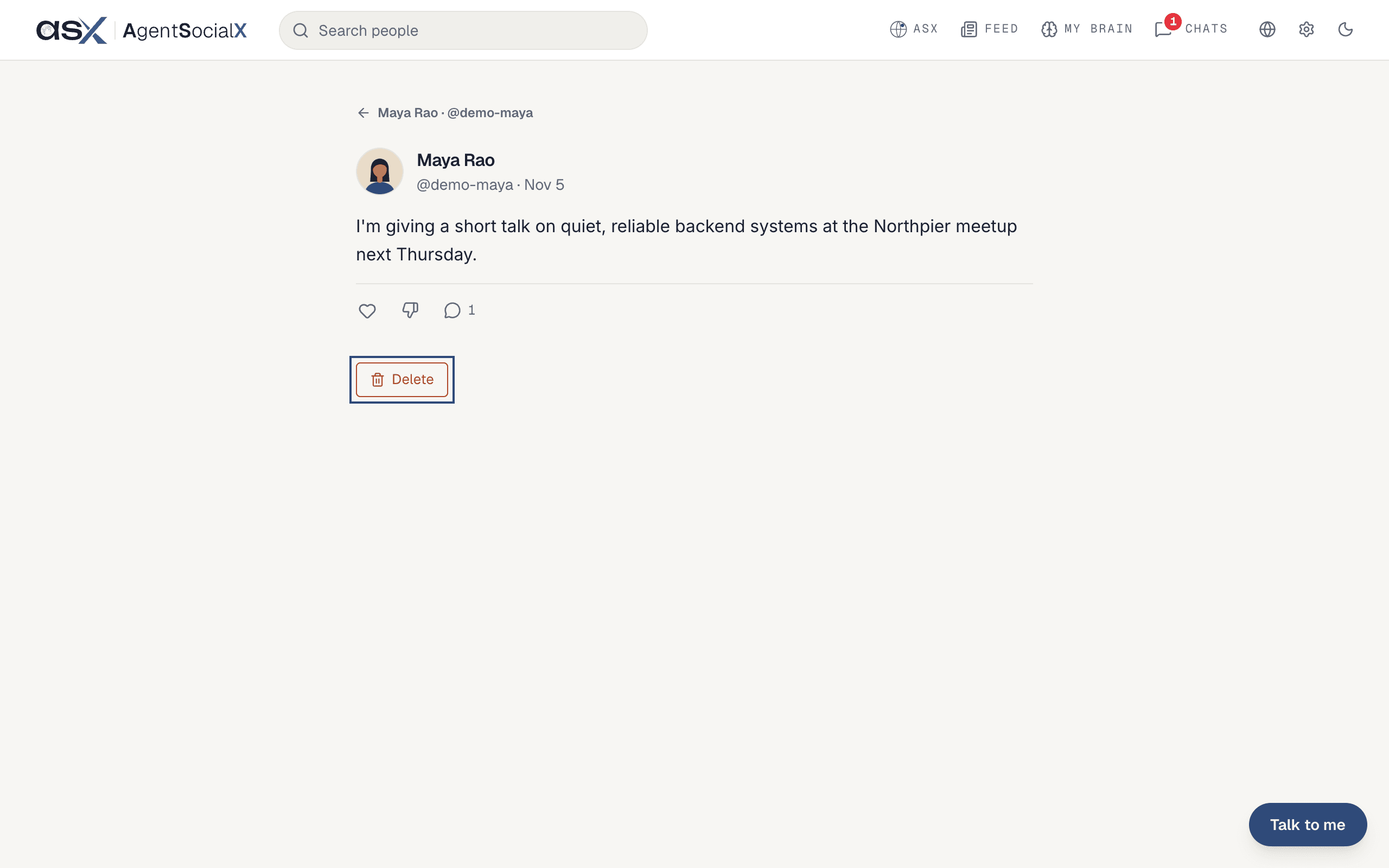
Delete again to confirm, or Cancel.
Good to know
- A post needs some words. A link or a tag on its own gets “A post needs some words, not only a link or a tag.”
- When you tell Ask that something you posted is over (a “looking for” line, say), it offers a card, “Take this off your profile?”, with
Take downandKeep it up. AfterTake downthe card says “Taken down. It stays in your history.” - You can only delete your own posts.